How do I keep Apple Home automations after upgrading to Hue Bridge Pro (Matter/Thread)? What changes
Short answer: you can't preserve automations automatically. After upgrading to the Hue Bridge Pro, Apple Home sees a new bridge identity — your existing automations still reference the old bridge, which is effectively gone. To keep Apple Home automations working, you must remove the old bridge, add the new one via the Hue app, and manually remap every scene and device.
This is not a bug. Apple Home ties automations, scenes, and accessories to a specific hardware identity. Swap the bridge, and that identity changes. Philips Hue confirms this in their official Bridge Pro upgrade guide: the Apple Home integration must be set up again after migrating to a new bridge. Amazon Alexa, by contrast, often carries device names over automatically — Apple Home does not.
What changes locally with Matter vs. HomeKit after upgrading to Hue Bridge Pro?
The Hue Bridge Pro exposes your Hue devices to Apple Home via Matter over IP — not Thread. Your bulbs and sensors remain on Zigbee; the Bridge Pro acts as a Matter bridge over your local network, translating between Zigbee and Matter instead of using the old proprietary HomeKit-bridge approach.
Thread is not involved in the connection between Apple Home and the Hue Bridge Pro. If you have Thread-native devices elsewhere, they use the Thread network provided by your Apple TV 4K or HomePod mini acting as a Thread border router. Hue devices behind the Bridge Pro stay on Zigbee, and Apple Home talks to the bridge over IP.
That architectural shift has practical consequences:
- Device entity IDs are entirely new. Even if a bulb has the same name, Apple Home treats it as a new accessory with a new identifier. Any automation referencing the old entity now points at nothing.
- Room assignments do not transfer. You will need to reassign each light to its correct room manually during setup.
- Grouped lights often switch more in sync. The "popcorn effect" — where grouped lights turned on one after another with a noticeable delay — is significantly reduced on the Bridge Pro's Matter implementation compared with the old bridge, based on user reports in the MacRumors forums. Not fully eliminated, but a marked improvement.
- Local control still means local control. Automation triggers and device commands run directly between your Apple Home hub and the Bridge Pro over your local network — no cloud routing.
How to keep Apple Home automations after upgrading to Hue Bridge Pro: step-by-step
Once the Hue migration has finished — Philips says allow up to 30 minutes, in practice often around 15 — follow this sequence carefully. Doing it out of order is the most common reason users end up with duplicate devices or permanently broken automations.
- Open the Apple Home app on your iPhone or iPad.
- Tap the three-dot menu (top right) and go to Home Settings → Home Hubs & Bridges.
- Select your old Hue bridge, scroll down, and tap Remove Bridge from Home. Confirm.
- Open the Hue app on the same device.
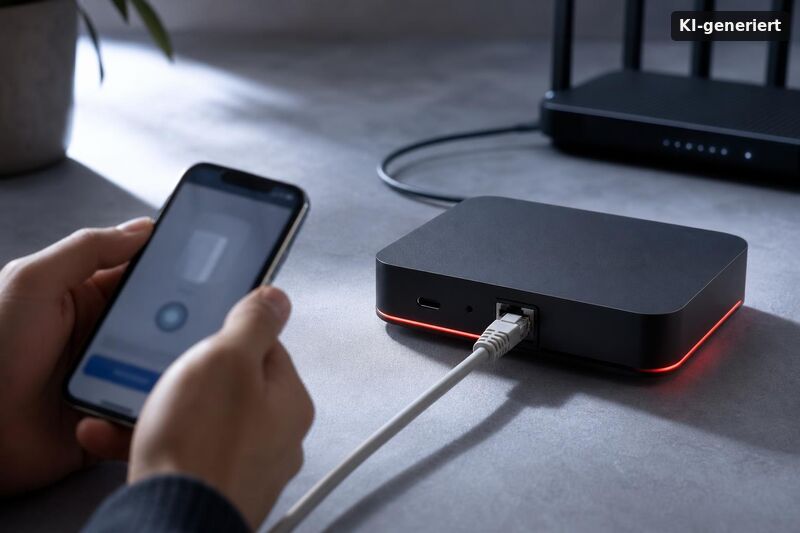
- Go to Settings → Smart Home → Apple Home and follow the on-screen instructions to add the Bridge Pro to Apple Home.
- Re-add each light and switch. Confirm the room assignment for every accessory and verify that device names exactly match what your automations expect.
- Rebuild every automation in Apple Home, checking that each trigger and action references the correct new accessory.
This is time-consuming — there is no shortcut for large installations. For a setup with 20+ lights, budget at least an hour. Editorial tip: take screenshots of every automation in Apple Home before you start the migration. That reference saves significant time during the rebuild.
Which automations break most often after the upgrade?
All automations that reference specific accessories will break and must be reassigned — Apple Home treats every device behind the new bridge as a new accessory. Avoid assuming any automation will survive unchanged.
Scene-based automations are the most common failure point. If a rule triggers a named scene — "Dinner," "Movie," "Morning" — and that scene references specific accessories by their old entity names, it breaks completely. The scene may still exist in the Hue app, but its Apple Home counterpart needs to be rebuilt.
Automations referencing individual accessories (rather than rooms) are the second biggest category. A rule like "when this sensor detects motion, turn on this bulb" needs to be manually reassigned to the new bulb entity after migration. If you rely heavily on occupancy/motion triggers, also sanity-check performance and timing with Hue Bridge Pro MotionAware presence accuracy and schedule reliability check.
Friends of Hue accessories — such as the Lutron Aurora dimmer — need to be manually re-added to the new bridge entirely. They do not migrate automatically. This is a Hue-side constraint that compounds the Apple Home rebuild.
Room- or time-based rules may also require rebuilding since Apple Home treats the devices behind the new bridge as new accessories regardless of how the rule was originally structured.
Does Apple Home have an automation limit after upgrading to Hue Bridge Pro?
Some users running large Hue setups report hitting what appears to be a practical ceiling on the number of automations Apple Home will accept. The symptom: you cannot add a new automation unless you first delete an existing one. As documented in the Hue Essentials community forum, at least one installation running 67 bulbs, 19 sensors, and 21 automations encountered exactly this behavior — a case that was escalated to a senior Apple advisor without resolution as of early 2026. Whether Apple imposes a hard numeric limit or the issue relates to Matter entity count is not publicly documented by Apple as of 2026.
Practical mitigation before you migrate:
- Audit your automations and delete anything redundant or unused.
- Consolidate multiple single-device rules into one room-based rule where possible.
- Avoid recreating automations in Apple Home that duplicate schedules already handled natively in the Hue app.
Migration pitfalls that break automations permanently
The single most common mistake is adding the Bridge Pro as a second bridge in Apple Home — rather than replacing the old one. This creates duplicate entities for every device and breaks all existing automations, with a cleanup significantly harder than a clean migration. Always remove the old bridge first.
A few other pitfalls worth flagging:
- Do not unplug either bridge during migration. The transfer can take up to 30 minutes; interrupting it can corrupt the process.
- Factory-reset the old bridge after migration completes. Use a paper clip to reset it. Leaving the old bridge active on the network can cause Zigbee device conflicts, since both bridges may try to manage the same devices.
- Verify the Hue app first. Confirm all lights appear correctly in the Hue app before touching Apple Home. A partially completed Hue migration makes the Apple Home rebuild unreliable.
- Check device names carefully. If a name in Apple Home does not exactly match what an automation or voice command expects, the rule will fail silently.
Post-migration, run through every room in Apple Home and manually trigger each automation once. It takes 15 minutes but surfaces any broken references before you rely on them in daily use. If you see devices go offline or fail to respond after setup, see Hue Bridge Pro Fehler: Offline-Geräte, Router-Wechsel und Neustart-Check for a targeted troubleshooting flow.
Conclusion
Keeping Apple Home automations after upgrading to the Hue Bridge Pro requires a full manual reconfiguration — there is no automatic carry-over. Remove the old bridge under Home Settings → Home Hubs & Bridges, re-add the Bridge Pro through the Hue app's Smart Home section, and rebuild device assignments, room names, and automation rules from scratch. The Matter over IP architecture brings real benefits — more reliable grouped switching, local control, broader platform compatibility — but the Bridge Pro is not a Thread device, and your Hue bulbs stay on Zigbee throughout. Document automations before you start, factory-reset the old bridge when done, and validate every rule manually afterward. For large installations especially, that groundwork is the difference between a smooth migration and hours of troubleshooting.
When you upgrade, your Apple Home scenes and automations can look the same, but the local path may change. To keep automations stable, focus on what changed for the new hub: Matter/Thread endpoints, local routing, and how devices appear inside Home. If a routine stops working after the switch, it’s often because the Home app cached the old device identifiers. Re-check which rooms and device tiles your automation uses, then edit the rule once so Apple Home links it to the new endpoints. Also verify that your Hue Bridge Pro is still reachable on your local network. That means the same primary network, no surprise VLAN changes, and no router settings that isolate devices. In practice, “How do I keep Apple Home automations after upgrading to Hue Bridge Pro (Matter/Thread)? What changes” is mostly about local control continuity, not about replacing every automation from scratch.
Lohnt sich die Hue Bridge Pro für Matter & Thread-Geräte? Kompatibilität mit Apple Home in den USA helps you understand what Apple Home sees after pairing. That knowledge is key for “How do I keep Apple Home automations after upgrading to Hue Bridge Pro (Matter/Thread)? What changes”, because automation triggers depend on which protocol Apple uses behind the scenes.
How to set up Philips Hue Bridge Pro step-by-step for beginners (US home network) is useful if you want to confirm the setup steps that support local performance. Use it to verify Thread/Matter activation, pairing order, and basic network prerequisites. That reduces the risk that “How do I keep Apple Home automations after upgrading to Hue Bridge Pro (Matter/Thread)? What changes” turns into downtime due to a misconfigured home hub path.
Hue Bridge Pro 'Accessory not responding' in Apple Home beheben: Offline-Geräte, Router-Wechsel und covers the most common post-upgrade symptom: devices or accessories that appear but do not react. If Apple Home automations trigger but lights do not move, this troubleshooting mindset helps you restore local reachability.