Hue Bridge Pro Thread range: where should you place it, and what to expect for wall coverage in US homes
Hue Bridge Pro Thread range: where should you place it, and what to expect for wall coverage in US homes—that question comes up constantly among Hue users planning a larger setup or troubleshooting dead zones. The short answer: placement and Zigbee mesh density matter far more than any single spec on the box. The Bridge Pro itself connects to your router via Ethernet; what it broadcasts outward is a Zigbee radio signal, and that signal's reach depends on your home's materials, your device layout, and how well you fill in the gaps.
Philips recommends mounting the Bridge Pro below 2 meters—roughly 6.5 feet—off the ground. Higher placement, particularly near a ceiling, can reduce signal consistency through floor joists in multi-story homes. A central hallway shelf, an entertainment unit, or a home office desk are all solid choices. What to avoid: closed metal cabinets, concrete alcoves, or positioning in a far corner of a large house.
What does Zigbee actually cover—and what does "Thread range" mean here?
The Hue Bridge Pro runs Zigbee for all Hue lights and accessories, and it exposes those devices to Matter as a Matter bridge over IP. It does not add a Thread radio for Hue bulbs or extend coverage via Thread. When people ask about "Hue Bridge Pro Thread range," they're really asking about Zigbee wall coverage—and that's what determines how far your lights reliably reach.
If you run into Matter pairing issues after setup, Hue Bridge Pro Thread/Matter pairing failures: exact remedies walks through the most common causes and fixes.
Zigbee operates in the 2.4 GHz band, which means it faces the same physical obstacles as 2.4 GHz Wi-Fi: standard drywall with wood studs attenuates the signal modestly, while concrete slabs, brick walls, and steel beams can cut range significantly. In a typical American stick-frame home with drywall interiors, coverage is usually reliable across most rooms when devices are spaced to maintain a continuous Zigbee mesh. Dense building materials—common in older East Coast row houses or homes with poured-concrete basements—require extra attention to mesh density.
One frequently overlooked factor is 2.4 GHz interference. Zigbee, 2.4 GHz Wi-Fi, and older Bluetooth all share the same spectrum. If your router is broadcasting on Wi-Fi channels that overlap with Zigbee's default channel, you can see intermittent drop-outs or sluggish response—especially in an apartment building or dense neighborhood where neighboring Wi-Fi networks stack up. Placing the Bridge Pro physically close to your router (connected via Ethernet) while keeping some channel separation between your router's 2.4 GHz band and the Zigbee channel is worth checking if you're seeing reliability issues.
How does the Zigbee mesh extend coverage room by room?
The core advantage of Zigbee is mesh networking: all mains-powered Hue devices—bulbs, light strips, the Hue Smart Plug—repeat signals and extend the network organically. Battery-powered accessories like the Hue Motion Sensor or the Wall Switch Module do not repeat; they're endpoints only. This distinction matters when you're planning coverage for a large home.
What this means practically: a living room lamp can relay the signal to a bedroom fixture two walls away. The Bridge Pro connects to its nearest powered devices, those relay to the next layer, and so on. As a rule of thumb, ensure each powered device has at least one nearby mains-powered Zigbee neighbor to maintain a robust mesh across rooms and floors. Problems arise when there's a physical gap—an isolated outdoor fixture with no intermediary powered device nearby, or a single bulb in a detached garage far from any other Hue light.
Philips' own guidance on this is worth noting: if you're running Wi-Fi extenders on your home network and notice app latency or delayed automations, the issue is likely your IP network stability rather than the Zigbee radio itself. The Bridge Pro's Ethernet backhaul to your router is separate from its Zigbee mesh to your lights—these are two independent communication paths.
Where should you place the Bridge Pro for best wall coverage?
Centrality is the single most important placement variable. A Bridge Pro tucked in a basement utility room will cover everything downstairs reliably while leaving the second floor marginal. The same device placed in a first-floor hallway—geometrically central to the home—gives every floor a shorter mesh path.
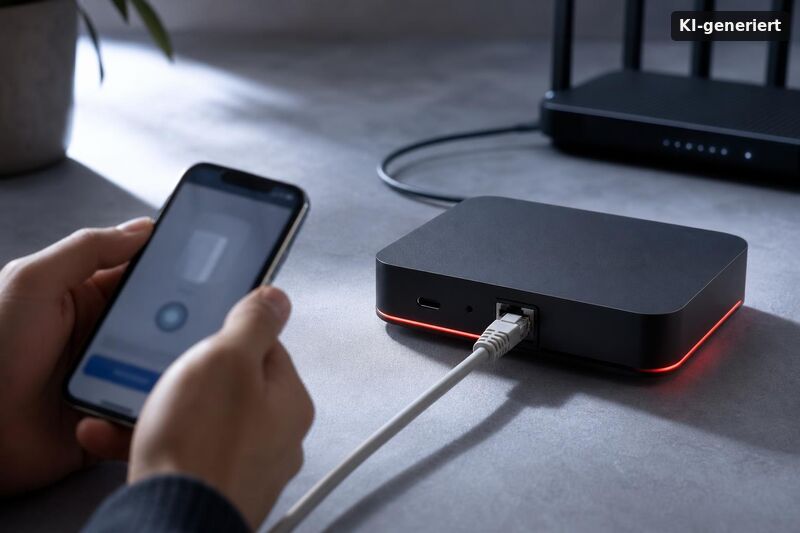
For connection: the Hue Bridge Pro uses a wired Ethernet link to your router. There is no Wi-Fi client mode. Use the included Ethernet cable—it ships in the box—and choose a placement where you can run that cable to a switch or router port without too much effort. This wired backhaul keeps automation latency low and system behavior consistent, independent of whatever else is happening on your home network.
A few placement mistakes that surface repeatedly:
- Closed metal AV rack: Metal enclosures attenuate the Zigbee radio meaningfully. The Bridge Pro belongs outside any fully enclosed metal cabinet.
- High wall mount near the ceiling: Looks clean, but signal drops through floor assemblies more than it needs to. Mid-height mounting performs better.
- Far corner of the house: Even with a strong mesh, starting the network in one corner means the opposite corner is always the weakest link.
- Near a microwave or dense cluster of 2.4 GHz devices: Microwave ovens broadcast at 2.4 GHz when running and can cause momentary Zigbee interference. Keeping some physical distance helps.
When do you need a second Bridge Pro?
Two scenarios make a second Bridge Pro the right call: hitting device limits, or persistent physical dead zones that survive proper mesh density.
The Bridge Pro supports up to 150 lights and 50+ accessories—a large jump from the standard Hue Bridge v2, which caps at 50 lights and 12 accessories. For most US homes, that ceiling is plenty. Custom builders and lighting-forward installations are where it becomes relevant.
On physical coverage, common situations that justify a second Bridge:
- A detached garage or workshop with no mains-powered Hue devices nearby to bridge the gap
- A multi-building property where guest house and main house need separate lighting networks
- Persistent dead zones in a basement or far wing despite adding intermediary powered devices
- Very large homes where a single Zigbee mesh struggles to maintain consistent end-to-end coverage
Philips Hue supports multi-Bridge setups in the app. Each Bridge runs its own independent Zigbee network; you manage them side by side, but automations and scenes are configured per Bridge. It's not a fully unified single-pane-of-glass experience—expect some duplication when setting up cross-Bridge routines. For the full breakdown of when a second Bridge becomes necessary, Philips Hue's official guidance on Bridge requirements is the clearest reference available.
What are the limits of MotionAware and presence detection?
One feature unique to the Bridge Pro—MotionAware™ radio sensing—is worth flagging if presence detection is part of your plan. The system only supports four motion areas across the entire home. If you're wiring every room and planning automated lighting tied to room-by-room presence, that limit shapes your layout decisions before you buy, not after.
The Hue app also cautions during setup that MotionAware works poorly near common hallways or open-floor-plan spaces where motion bleeds between zones. For a large open-plan living and dining area, the feature may not perform as expected regardless of how well your Zigbee mesh is covering the space. That's not a range issue—it's a sensing-zone design constraint. For a practical reliability check, see Hue Bridge Pro MotionAware presence accuracy and schedule reliability check.
For more context on the full Bridge Pro feature set and how it compares to the standard Bridge v2, Philips Hue's Bridge buying guide outlines which users each model is built for.
Conclusion
The Hue Bridge Pro's wall coverage in a US home is determined by Zigbee mesh density and placement—not by Thread, which is not used by Hue bulbs or accessories on this device. Place the Bridge Pro centrally, below 6.5 feet, away from metal enclosures and 2.4 GHz interference sources, and connect it via the included Ethernet cable. Build your mesh with mains-powered Hue devices to fill gaps between rooms and floors; battery-powered accessories like motion sensors don't repeat signals. If dead zones persist after optimizing placement and mesh density, or if your device count approaches 150 lights, a second Bridge Pro running its own Zigbee network is the right solution. For most US stick-frame homes with a well-distributed Hue setup, a single Bridge Pro handles the job reliably.
When you set up the Philips Hue Bridge Pro step-by-step for beginners (US home network), placement becomes easier because you can plan for the way Thread radio waves spread inside US houses. The best spot is usually a central place, high up, and away from thick metal objects. If you place the bridge Pro near an exterior wall, its signal may look strong outdoors, but it can drop faster inside rooms. For the Hue Bridge Pro Thread range: where should you place it, and what to expect for wall coverage in US h, expect that one interior wall often costs less than you think, while multiple drywall layers with HVAC ducts can reduce the mesh quality. In large homes, you may also see better results when the bridge Pro sits on the main floor rather than in a basement corner.
To know what to expect for the Hue Bridge Pro Thread range: where should you place it, and what to expect for wall coverage in US h, you should also think about troubleshooting. The Thread mesh can only help if devices join correctly and stay stable over time. If you run into join issues after walls hide the signal, use this guide: Hue Bridge Pro Thread/Matter pairing failures: why new devices won’t join after upgrade and the exac. It explains exact fixes like fabric setup checks, re-joining devices, and common mistakes that look like range problems but are actually onboarding issues.
Finally, if you want Messenger-like predictability room to room, don’t treat Thread range as a fixed number. It is affected by home layout, furniture, and where your Hue lamps sit. This is why you should learn how placement and mesh behavior work together in real life. Read Hue Bridge Pro MotionAware: is presence detection accurate, and how reliable are schedules vs false . It helps you connect signal quality to day-to-day behavior, so you get realistic expectations for scenes and automations when you test the Hue Bridge Pro Thread range: where should you place it, and what to expect for wall coverage in US h across your walls.